RGB Wired Gaming Headset: Noise-Cancel Mic + Controls
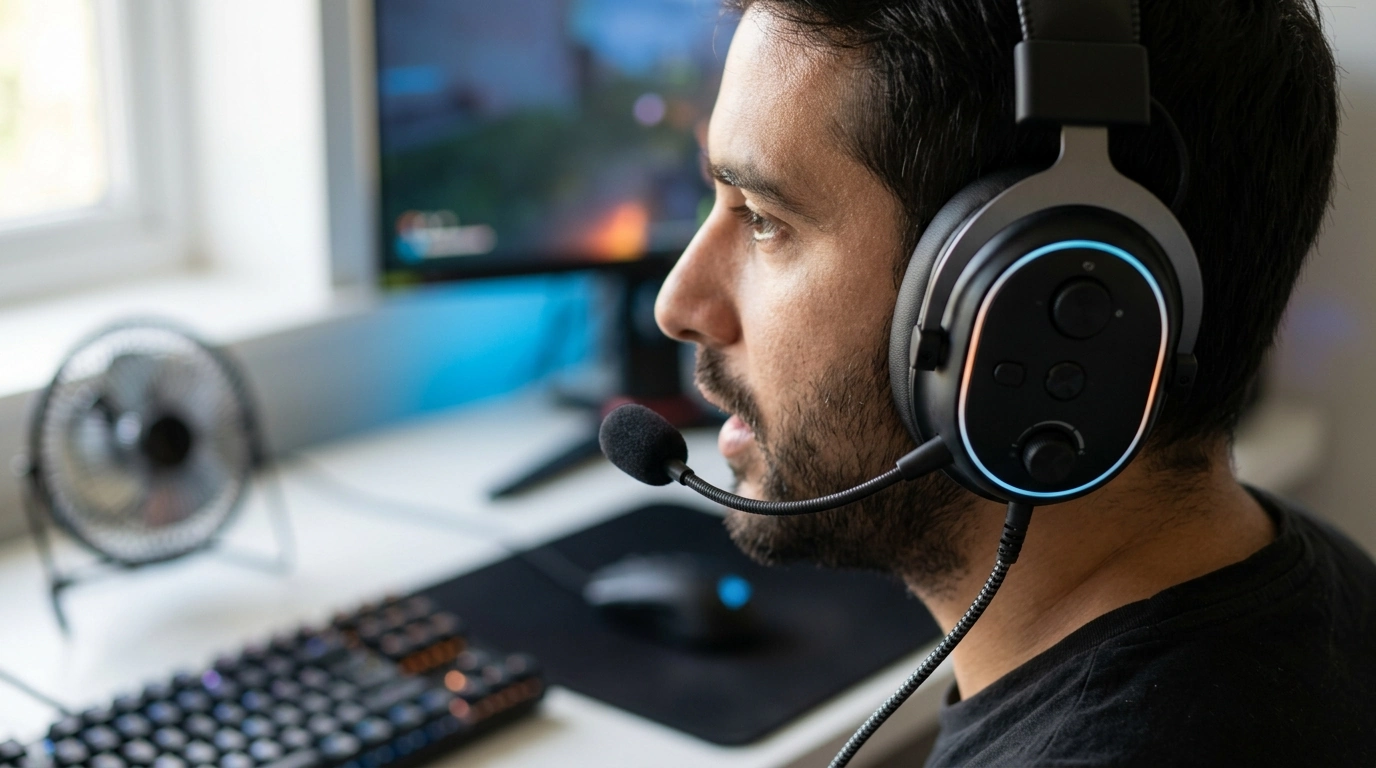
RGB Wired Gaming Headset with Noise-Canceling Mic and Button Controls
A wired gaming headset can be one of the simplest upgrades for clearer chat, faster setup, and consistent audio without worrying about battery life. This RGB wired model focuses on three practical needs: a microphone designed to reduce background noise, on-headset button controls for quick adjustments, and a comfortable fit for longer sessions across common gaming setups.
What stands out at a glance
- Wired connection for stable audio and voice chat with no charging required
- Noise-canceling microphone design to help reduce keyboard clicks, fan noise, and room echo during calls
- Button controls on the headset for quick changes mid-match (volume/mute and other in-line or earcup controls depending on configuration)
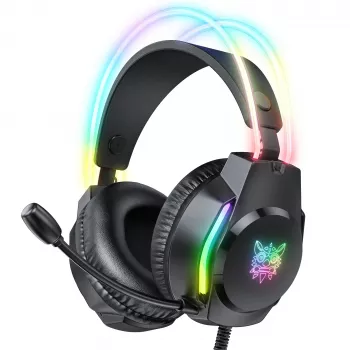
- RGB lighting for a gaming look that pairs well with desk setups and streaming environments
- A straightforward option for everyday play, party chat, and casual competitive sessions
Audio experience for games, chat, and media
With a wired connection, audio tends to feel more direct and consistent. That stability matters most in team games, where voice chat and game sound compete for attention. A balanced sound profile helps callouts stay intelligible while still letting you track effects like footsteps, reloads, and ambient cues.
For single-player games and media, comfort and even sound across low and mid frequencies often matter more than chasing maximum loudness. If the default tuning feels too bass-forward (boomy) or too sharp (fatiguing), quick EQ tweaks in your PC or console settings can improve clarity without adding extra hardware.
Quick tuning ideas (no extra apps needed)
| Use case | What to adjust | Result to aim for |
|---|---|---|
| Team shooters | Lower bass slightly, raise mids a touch | Footsteps and callouts stay clearer |
| RPG/story games | Slight bass lift, keep treble moderate | Fuller impact without harshness |
| Voice chat-heavy | Raise mids/upper mids, reduce very low bass | Less boominess, clearer speech |
Noise-canceling mic: what it helps with (and what it won’t)
A noise-canceling mic can help reduce steady background sounds—think PC fans, AC hum, or distant room noise—so teammates hear your voice more clearly. It’s especially useful in shared spaces where minor, constant noise would otherwise sit underneath every sentence.
Mic positioning still does a lot of the heavy lifting. Keeping the mic about a couple of finger-widths from the corner of your mouth usually improves clarity while reducing breath pops. It also helps to set input gain so your normal speaking voice peaks clearly without clipping.
What it won’t do: fully remove sudden loud sounds (like door slams or barking) or fix a very echoey room by itself. If your platform offers built-in suppression, it can be worth turning it on after you’ve confirmed mic placement and input levels. For Discord users, the official steps for running a quick mic check can save time before a match: Discord Support — How to Test Your Microphone.
Button controls: staying in the game without digging into menus
On-headset button controls are all about speed. A quick mute/unmute is useful during matchmaking, team fights, or anytime you need to speak to someone nearby without broadcasting it to the whole lobby. Tactile controls can also be easier to manage than searching through system menus mid-round.
One practical tip: on consoles and PCs, in-game volume and system-level volume can stack. Setting a comfortable “baseline” in your system settings and then fine-tuning with the headset control usually keeps things predictable between games and party chat.
Comfort and fit for longer sessions
As a general health note, listening at safer volumes is a smart habit—especially during marathon gaming days. The World Health Organization’s safe listening guidance offers helpful context on protecting hearing over time.
RGB lighting: practical notes
Setup and compatibility checklist
Console users should double-check controller port support and system audio settings for chat output/input selection. For platform-specific headset basics, PlayStation provides a helpful starting point for audio and chat configuration: PlayStation Support — Audio and chat settings (headset basics).
Fast pre-game check (60 seconds)
| Step | Where to check | What “good” looks like |
|---|---|---|
| Select output | System sound settings | Headset is the active playback device |
| Select input | System/party chat settings | Mic shows activity when speaking |
| Set levels | Input gain + headset volume | Clear voice without clipping or distortion |
| Test in-app | Voice chat test (Discord/console party) | Teammates hear voice clearly, minimal background noise |
Value and who it suits
Product details and purchase option
- RGB Wired Gaming Headset with Noise-Canceling Mic and Button Controls — $31.51 (in stock)
Snapshot
| Item | Detail |
|---|---|
| Name | RGB Wired Gaming Headset with Noise-Canceling Mic and Button Controls |
| Price | 31.51 USD |
| Stock status | In stock |
| Primary features | Noise-canceling mic, button controls, RGB lighting, wired connection |
More in-stock picks
- Heavy-Duty Anti-Theft Bike Cable Lock with Password Security
- Fuel Your Life: The Ultimate Healthy Eating Starter Bundle | 4-in-1 Bundle Digital Download | Healthy Eating PDF + Audio
FAQ
Does a noise-canceling mic remove all background noise?
No. It mainly reduces steady, low-level noise (like fans or HVAC), and results depend heavily on mic placement and input gain; sudden loud sounds and room echo may still come through.
Will the button controls work the same on PC and console?
Basic volume and mute often work across devices, but behavior can vary based on the connector type and how your system handles headset controls. A quick party chat test is the fastest way to confirm everything responds as expected.
How can mic clarity be improved quickly without extra equipment?
Move the mic closer to your mouth, lower input gain if you hear clipping, and enable your app/console noise suppression if available. Reducing room echo by changing position or adding soft furnishings nearby can also improve clarity.









Leave a comment